MECCHA CHAMELEON Controls
A practical MECCHA CHAMELEON controls guide covering default keys, Paint Mode, Middle Mouse camera rotation, Rotation Lock, Spacebar Eyedropper, right-click brush size, Pose, Taunt, Chat, Climb, Detach, Shoot, Spectate, voice controls, Answer Check Time, Missed Spot Ranking, Q prompts, no sprint, controller notes, and common control problems.
Updated:
Quick Answer
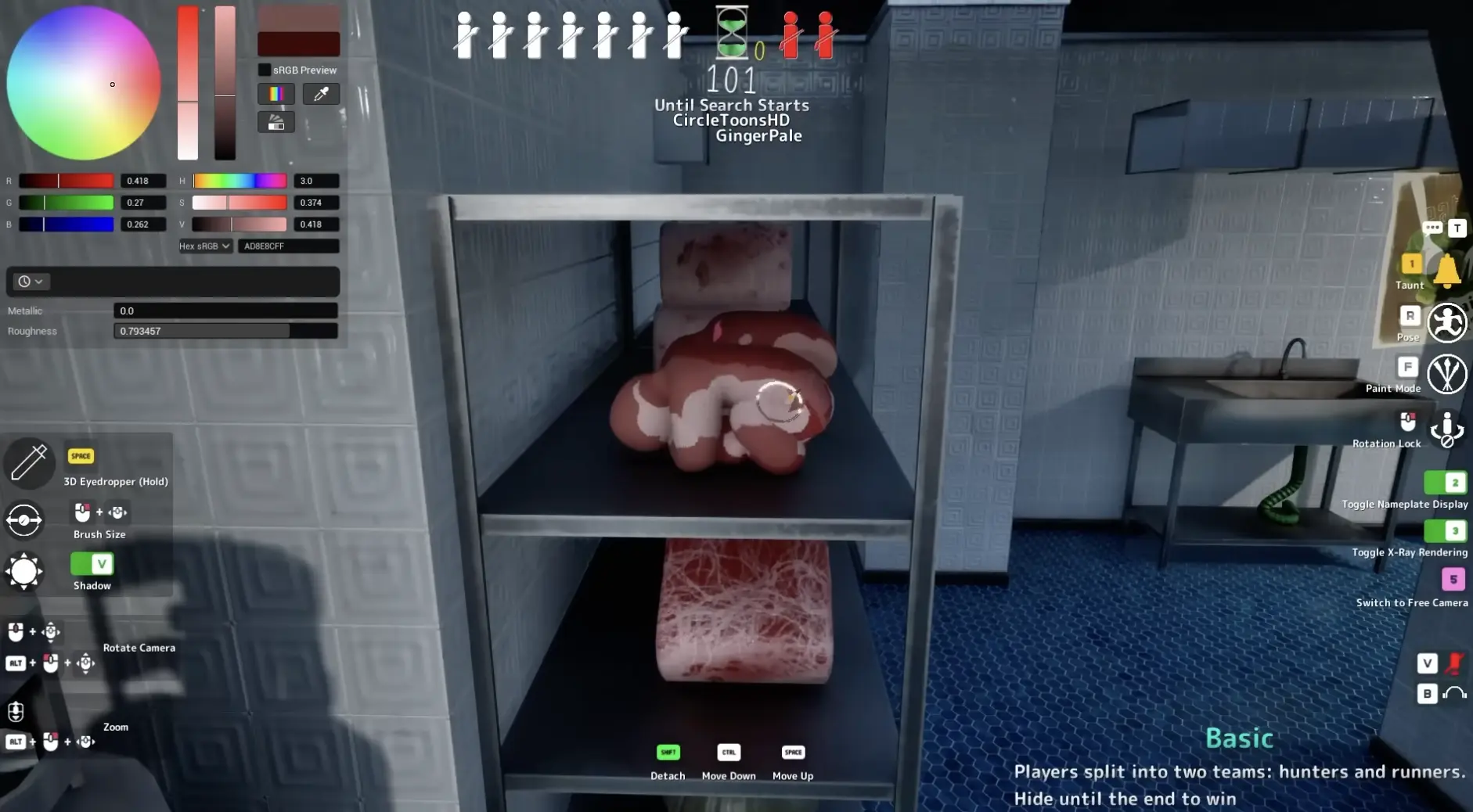
The default MECCHA CHAMELEON controls you should learn first are F for Paint Mode, R for Pose, 1 for Taunt, T for Chat, Spacebar for 3D Eyedropper in Paint Mode, Middle Mouse Button to rotate the paint camera, Right Mouse Button for Rotation Lock, right-click drag for Brush Size, V for Shadow inside Paint Mode, Spacebar / Ctrl / Shift for climbing, moving down, and detaching, and primary fire to shoot as seeker. There is no normal sprint key, so survival comes from positioning, painting, posing, and staying still.
Find a Control
- Default keyboard and mouse controls
- Paint Mode and Eyedropper
- Pose and climbing
- Shoot and seeker controls
- Spectate and Free Camera
- Answer Check Time
- Q, voice chat, sprint, and controller
- Common control problems
Read This Before Using The Table
The controls below are the default keyboard and mouse controls most players need for early MECCHA CHAMELEON rounds.
If you changed your bindings, joined a custom room, use a controller, or play after a major update, your own screen may show different prompts. Use this guide as the default reference, then follow the in-game prompt if your current UI shows something different.
Quick Controls Table
This is the main controls table. Use it as the default key reference, then use the sections below for the control details that need explanation.
| Action | Default key / input | When you use it | Important note |
|---|---|---|---|
| Move | WASD | Hider and seeker movement | There is no normal sprint key |
| Look / aim | Mouse | Painting, searching, shooting | Hiders and seekers use the camera differently |
| Paint Mode | F | Opens body painting tools | Pick a spot before painting |
| Pose | R | Changes body shape | Pose often matters more than detailed paint |
| Taunt | 1 | Makes a sound cue | Can bait seekers or reveal your area |
| Chat | T | Opens chat | Do not confuse this with Taunt |
| 3D Eyedropper | Spacebar in Paint Mode | Samples nearby surface color | Use it as a starting color, then adjust by eye |
| Brush Size | Right-click drag in Paint Mode | Makes brush bigger or smaller | Large for base color, small for edges |
| Shadow | V in Paint Mode | Adjusts shadow feel | Separate from voice-status V |
| Rotate Camera | Middle Mouse Button | Rotates the paint camera | Critical for checking side angles |
| Rotation Lock | Hold Right Mouse Button when the prompt is active | Keeps your body facing while repositioning | Useful after you set the angle you want |
| Climb / Move Up | Spacebar near climbable surfaces | Moves up walls or surfaces | Strong with Pose and Paint Mode |
| Move Down | Ctrl while climbing | Lowers your position | Helps fine-tune wall spots |
| Detach | Shift while climbing | Leaves the surface | Detach can drop you, so do not press it by mistake |
| Shoot / Fire | Primary fire / left click | Seeker confirms suspicious objects | Shoot when you have a clue |
| Toggle Nameplate Display | 2 | Changes nameplate visibility | Useful while learning UI visibility |
| Toggle X-Ray Rendering | 3 | Changes visibility rendering | Good for learning crowded spots |
| Switch to Free Camera | 5 | Camera or spectate review | Useful after being found or checking angles |
| Mute your mic | V in voice status prompts | Cuts off your microphone | Separate from V Shadow in Paint Mode |
| Mute other players | B in voice status prompts | Mutes other players’ voice chat | Check the bottom-right voice icons |
| Q prompt | Q when shown | Contextual action | Read the label beside Q |
| Answer Check Time | Post-round phase | Reviews final hider locations | Use Missed Spot Ranking to learn what seekers missed |
Paint Mode, Eyedropper, Brush Size, Rotation Lock, And Camera Rotation
Most new players lose time because they open Paint Mode before choosing a spot. Do the opposite: choose the hiding position first, then use Paint Mode to support that position.
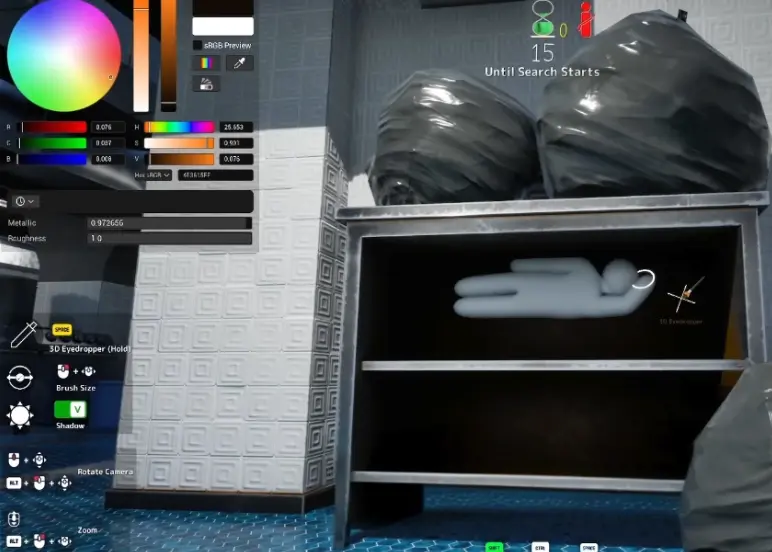
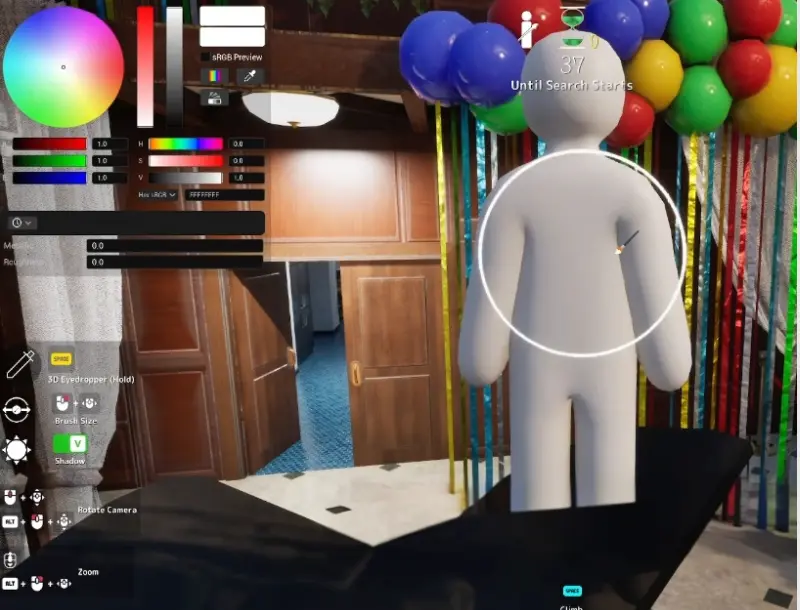
The core Paint Mode flow is simple:
- Press F to enter Paint Mode.
- Press Spacebar to use the 3D Eyedropper and sample the nearby surface.
- Use right-click drag to change Brush Size.
- Use Middle Mouse Button to rotate the paint camera and check side angles.
- Hold Right Mouse Button for Rotation Lock when you want to keep your current facing while moving into position.
- Use V for Shadow inside Paint Mode if you need to adjust shadow feel.
- Stop painting before the search starts and check whether your body still looks human.
| Paint problem | Best fix |
|---|---|
| I cannot enter Paint Mode | Press F and check that you are in the correct round state |
| The color is close but still wrong | Rotate with Middle Mouse Button and adjust by eye |
| My body turns when I move | Hold Right Mouse Button for Rotation Lock after setting the angle you want |
| The brush is too small | Use right-click drag to increase Brush Size |
| The brush is too large | Use right-click drag to reduce Brush Size |
| The body looks too flat | Try V for Shadow and adjust lighting feel |
| I run out of time | Paint the biggest visible body area first, not tiny details |
Pose, Climb, Move Down, And Detach
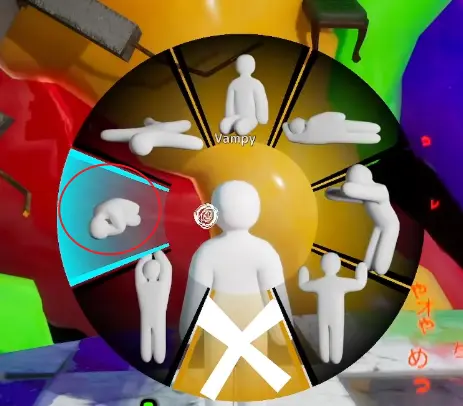
Pose is the fastest way to stop looking like a normal standing player. Press R to change your body shape, then choose a pose that matches your hiding spot.
A flat or curled pose can work on shelves, walls, floors, and under objects. A standing pose can work near tall props, but it is easier for seekers to recognize if the surroundings do not support it.
Climbing expands the number of hiding spots. Use Spacebar to climb or move up, Ctrl to move down, and Shift to detach.
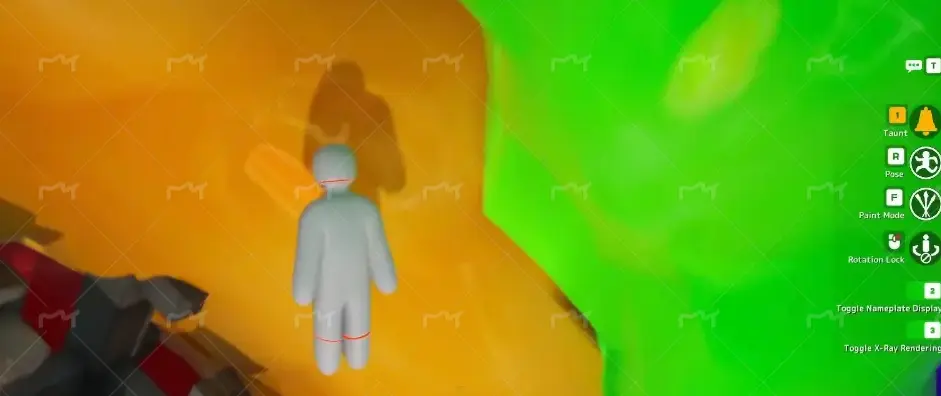
| Control | Default key | Best use |
|---|---|---|
| Pose | R | Breaks the normal player silhouette |
| Climb / Move Up | Spacebar | Moves higher on climbable surfaces |
| Move Down | Ctrl | Lowers your position while attached |
| Detach | Shift | Leaves the wall or surface |
| Paint while attached | F | Matches the surface after choosing the position |
Hider View vs Seeker View
MECCHA CHAMELEON controls feel different depending on your role.
As a hider, you mostly work from a third-person view. That matters because you are painting your own body, checking your outline, rotating the camera, locking your body angle, and trying to see whether your pose still looks human.
As a seeker, you play more like a first-person spot-the-difference round. You are not painting or posing. You are scanning the room for shapes, shadows, sounds, and colors that do not belong.
| Role | Camera focus | What the controls teach you |
|---|---|---|
| Hider | Third-person body and paint view | How your pose, color, rotation, and outline look from outside |
| Seeker | First-person search and aim view | How suspicious shapes and paint mistakes stand out |
| After being found | Spectate or Free Camera | Why a spot worked or failed from another angle |
Taunt, Chat, And Sound Controls
The default Taunt key is 1, while T opens Chat.
These actions are not interchangeable:
| Action | Default key | What it does | Important note |
|---|---|---|---|
| Taunt | 1 | Creates an audible sound cue | Seekers may use the sound to identify your general area |
| Chat | T | Opens text chat | Pressing T does not activate the Taunt sound |
| Voice chat | Follow the current voice prompts | Lets players communicate during the match | V and B can have context-specific voice functions |
Shoot, Spectate, And Free Camera
When you are the seeker and the search phase has started, use primary fire / left click to shoot a suspicious target.
If shooting does not work, check two things:
- You are currently the seeker.
- Hide time has ended and the search phase has started.
| Action | Default input | What it does |
|---|---|---|
| Look / aim | Mouse | Moves the seeker camera and aims at a target |
| Shoot / Fire | Primary fire / left click | Tests and confirms a suspected hider |
| Free Camera | 5 in current prompts | Switches to a free camera when the current state allows it |
| Spectate | Follow the current camera prompt | Watches remaining players or reviews the round |
| Stop spectating | Use the shown exit, return, or camera-toggle prompt | Leaves the current spectator or camera state |
For search routes, sound clues, score clues, and room-checking strategy, use the Seeker Guide.
What Answer Check Time And Missed Spot Ranking Mean
Answer Check Time is not a movement key, paint key, or seeker shooting key.
It is the post-round review or reveal phase. During this phase, players can see where hiders ended up, review missed spots, and understand which disguises fooled the seekers. If the game shows Missed Spot Ranking, use it as a quick list of the hider positions seekers failed to catch.
| During Answer Check Time | What you should look for |
|---|---|
| Final hider locations | Which spots survived until the end |
| Missed Spot Ranking | Which hidden players or spots seekers failed to notice |
| Body outline | Whether the hider still looked human-shaped |
| Paint match | Whether the color really matched from seeker view |
| Angle problem | Whether the spot only worked from one direction |
| Sound mistakes | Whether a taunt helped or exposed the hider |
Q Button, Voice Chat, No Sprint, Controller, And Steam Deck Notes
Some control questions do not need long sections, but they are important because players search them often.
| Question | Short answer | What to do |
|---|---|---|
| What does Q do? | Q is contextual | Read the label beside the Q prompt before pressing it |
| What does V do? | It depends on context | In Paint Mode, V is Shadow; in voice status prompts, V can cut your mic |
| What does B do? | Voice-chat mute prompt | Use B when the UI shows the mute-other-players voice prompt |
| Is there a sprint key? | No normal sprint key | Focus on route choice, climbing, hiding, and staying still |
| Is Taunt the same as Chat? | No | 1 is Taunt, T is Chat |
| Does controller work? | Treat the game as keyboard-and-mouse-first, especially for painting | Use custom bindings, Steam Input, trackpad aiming, or mouse input if needed |
| Is Steam Deck comfortable? | It can be playable, but paint control is the hard part | Remap controls and use trackpad or mouse-style input for painting |
| Hider camera vs seeker camera? | Hider uses third-person body/paint view; seeker uses first-person search view | Learn both perspectives because each teaches the other |
Common Control Problems
Use this table when something feels broken but is usually a role, state, or prompt issue.
| Problem | Likely reason | Fix |
|---|---|---|
| I cannot paint | You are not in the right state or missed the Paint Mode prompt | Press F when Paint Mode is available |
| The eyedropper does not work | You are not in Paint Mode or are not aiming at a valid surface | Enter Paint Mode and press Spacebar on a nearby surface |
| My brush size is wrong | Brush Size was changed | Use right-click drag in Paint Mode |
| I cannot rotate while painting | You are not using the paint camera control | Use Middle Mouse Button |
| My body keeps turning when I move | You are not using Rotation Lock | Hold Right Mouse Button after setting the angle you want |
| I keep falling from walls | You pressed Detach or lost the climb position | Use Spacebar / Ctrl to adjust; avoid Shift unless leaving |
| Pose is not helping | Your pose does not match the surface or object | Pick a pose that breaks the human outline |
| Taunt gets me found | You used sound when seekers were too close | Use 1 only when it creates confusion |
| I opened chat instead of taunting | You pressed T | Use 1 for Taunt and T for Chat |
| I cannot shoot | You may not be seeker yet or the search phase has not started | Wait for search phase, then use primary fire |
| I cannot stop spectating | You are in a camera state with different prompts | Look for the current exit, return, or camera-toggle label |
| Q does something different | Q is contextual | Read the label beside the Q prompt |
| V seems to do two different things | V is context-based | In Paint Mode, V is Shadow; in voice status prompts, V can cut your mic |
| I keep trying to sprint | There is no normal sprint key | Move early, climb well, and stop moving before seekers arrive |
| Answer Check Time confuses me | You are treating it like a control | Use it as the post-round reveal phase and check Missed Spot Ranking |
Final Control Priority
Learn the controls that affect survival first: F for Paint Mode, Spacebar for Eyedropper and climbing, Middle Mouse Button for camera rotation, Right Mouse Button for Rotation Lock, R for Pose, and Shift for Detach. After that, learn the difference between 1 Taunt and T Chat, then use Answer Check Time and Missed Spot Ranking after each round to understand what you missed.
What To Read Next
If you are still learning the full first-match flow, use the MECCHA CHAMELEON Beginner Guide.
If you understand the controls but keep getting found quickly, move to the MECCHA CHAMELEON Hider Guide.
If you understand hiding but cannot find other players as seeker, use the MECCHA CHAMELEON Seeker Guide.
If your main problem is map knowledge, use the MECCHA CHAMELEON Maps & Hiding Spots Guide.
FAQ
What are the default MECCHA CHAMELEON controls? +
The main default keyboard and mouse controls are F for Paint Mode, R for Pose, 1 for Taunt, T for Chat, Spacebar for 3D Eyedropper in Paint Mode, Middle Mouse Button for camera rotation, Right Mouse Button for Rotation Lock, right-click drag for Brush Size, V for Shadow in Paint Mode, Spacebar to climb or move up, Ctrl to move down, Shift to detach, primary fire to shoot, 2 for Nameplate Display, 3 for X-Ray Rendering, and 5 for Free Camera.
How do I rotate the camera in MECCHA CHAMELEON? +
Use the Middle Mouse Button to rotate the camera while painting. This is one of the most important Paint Mode controls because it lets you check weak body edges and hidden angles before seekers arrive.
What does Rotation Lock do? +
Rotation Lock lets you keep your current body facing or rotation while repositioning. Set the angle you want, hold Right Mouse Button when the Rotation Lock prompt is active, then move into place without turning your body.
Is Taunt the same as Chat? +
No. The default Taunt key is 1, while T opens Chat. Taunt creates sound and can bait seekers, while Chat is for typing.
Is there a sprint key in MECCHA CHAMELEON? +
No. MECCHA CHAMELEON does not use a normal sprint key. Movement is about positioning, climbing, posing, painting, and staying still rather than outrunning seekers.
What is Answer Check Time? +
Answer Check Time is the post-round reveal and review phase. It lets players see where hiders were, review missed spots, and understand which disguises were overlooked through the Missed Spot Ranking.
What does the Q button do? +
Q is a contextual prompt. Its meaning depends on the current screen, role, or camera state. Read the label beside the Q prompt instead of treating Q as one permanent control.
What do V and B do in the bottom-right voice icons? +
In the voice status prompts, V can cut your mic and B can mute other players. This is separate from Paint Mode, where V is used for Shadow.
Does MECCHA CHAMELEON support controller or Steam Deck? +
Treat MECCHA CHAMELEON as keyboard-and-mouse-first, especially for painting. If you use a controller or Steam Deck, expect to rely on in-game prompts, custom bindings, Steam Input, trackpad aiming, or a mouse for better paint control.
How do I shoot in MECCHA CHAMELEON? +
Use primary fire or left click when you are the seeker and the search phase has started. If shooting does not work, confirm that you are the seeker and that hide time has ended.
How do I stop spectating in MECCHA CHAMELEON? +
Use the exit, return, or camera-toggle prompt shown in the current spectator state. The exact prompt can change depending on whether you are using Spectate or Free Camera.